
OD Team Starter Tutorial
With this tutorial, you will learn how to start a sample server with Obeo Designer Team, export a model into this server and use concurrent clients to access to the shared model.
This procedure is only dedicated to evaluation purposes. Otherwise, for an operational deployment, you should launch Obeo Designer Team Server.
1) Start a server
To start a server, you can use one of the ready-to-use Eclipse Configurations available in Obeo Designer Team. They will run a server hosting a database on which models can be stored.
- Launch Obeo Designer Team
- Click on the menu “File / New / Example…”,
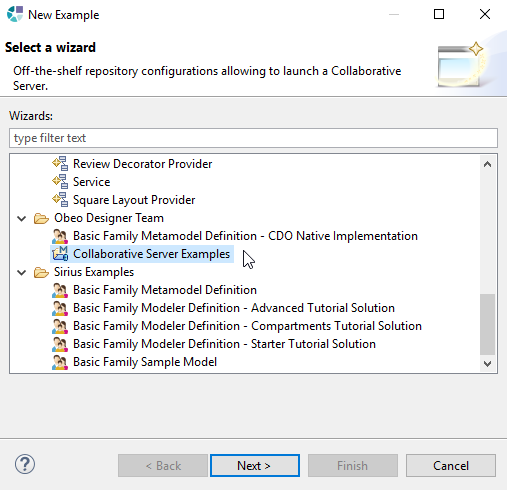
- Select “Obeo Designer Team / Collaborative Server Examples“, then click on “Next” and “Finish”: it will install an Eclipse project containing three Launch Configurations.
- Click on the menu “Run / Run Configuration…” and select “Eclipse Application / Collaborative Server [default]“
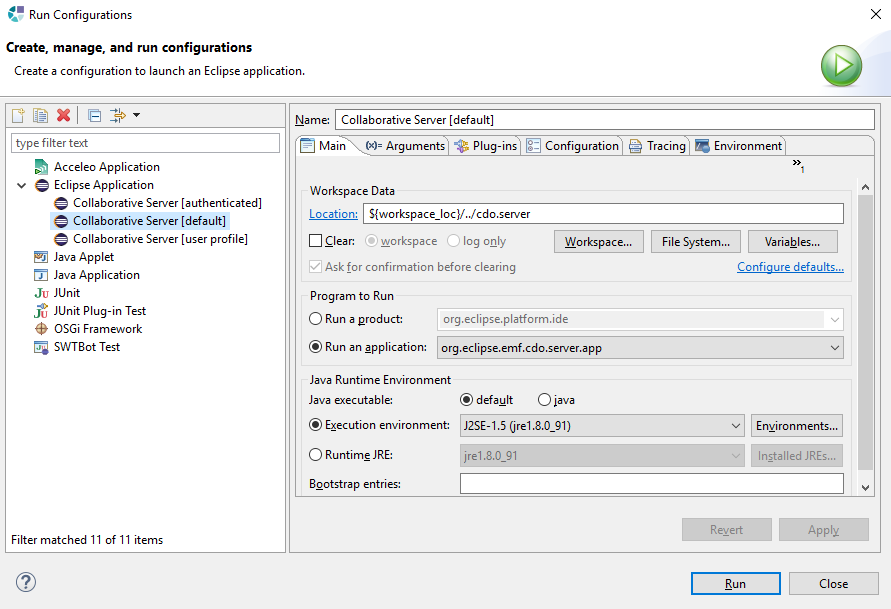
- Then click on the button “Run“: the configuration will start a CDO server and the corresponding database.
Note: To operationally deploy Obeo Designer Team you would rather have to run Obeo Designer Team Server, a console-mode application to manage the server. See the Administrator Manual in the product Help.
2) Install a modeling tool
To test the features of Obeo Designer Team, we need to install a modeler: we will use Basic Family, a basic modeling tool provided as an installable sample with Obeo Designer Team.
Within Obeo Designer Team, proceed as follows:
- Install the Basic Family metamodel
- Click on the menu “File / New Example…“,
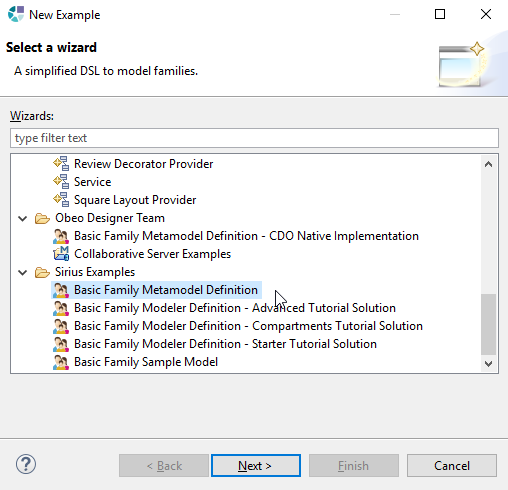
- Select “Sirius Examples / Basic Family Metamodel Definition”
- Then click on “Next” and “Finish”: it will install three Eclipse projects containing the EMF definition of the basicfamily metamodel.
- Install the CDO implementation of the metamodel
- Click on the menu “File / New Example…“
- Select “Obeo Designer Team / Basic Family Metamodel Definition – CDO Native Implementation”
- Then click on “Next” and “Finish: it will install an Eclipse project containing the CDO implementation of the basicfamily metamodel.”
- Install the Basic Family modeler
- Click on the menu “File / New Example…“
- Select “Sirius Examples / Basic Family Modeler Definition – Advanced Tutorial Solution”
- Then click on “Next” and “Finish: it will install an Eclipse project containing the Sirius definition of the basicfamily modeler.”
3) Start a first client
Once you have launched a server and installed a modeling tool, you can try to collaboratively work on models.
- Launch a new Eclipse Configuration
- Click on the menu “Run / Run Configuration…“
- Double-click on “Eclipse Application” to create a new Configuration
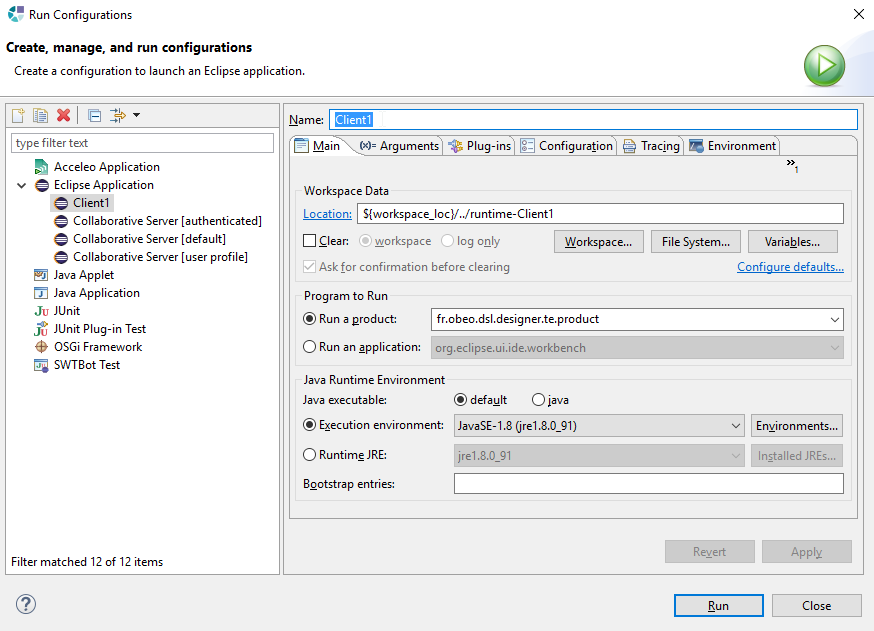
- Rename the configuration from “New_configuration” to “Client1”, then click on the button “Run”
- Note: you have to proceed like this because the Basic Family metamodel and modeler are not natively installed within Obeo Designer Team (they are only provided as installable examples).Install the Basic Family sample model in the new Configuration (the new Eclipse that has been launched by running the new Configuration)
Install a sample model
- In the new Eclipse runtime, click on the menu “File / New Example…“
- Select “Sirius Examples / Basic Family Sample Model”, then click on “Next” and “Finish”
- Export the sample model to the Server
- Click on the menu “File : Export…”
- Then select “Sirius / Shared Modeling from Local”
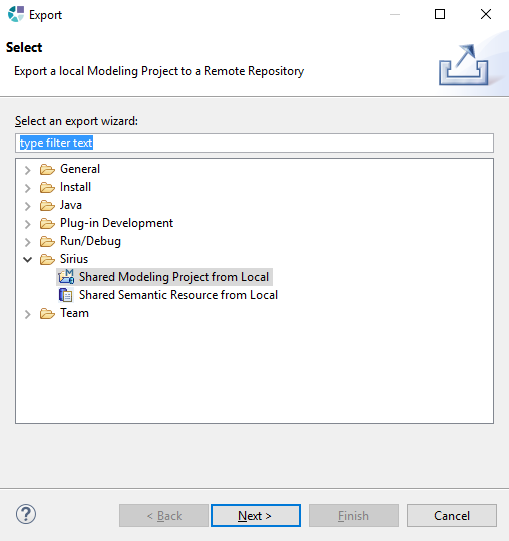
- Click on “Next” twice
- Then click on “Test connection” and “Finish“
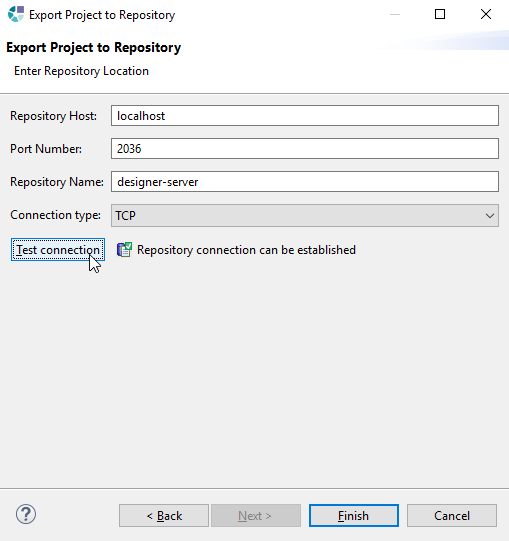
- Once the sample modeling project has been exported, a dialog appears : click on “Finish”, then activate the “persons” viewpoint
- Use the shared model
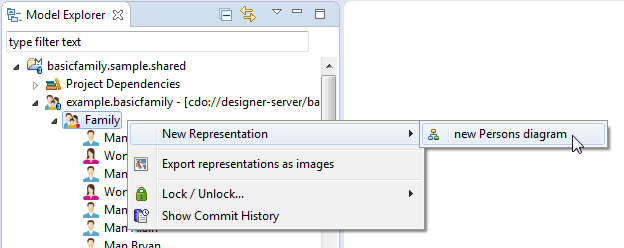
- Open the shared modeling project named “basicfamily.sample.shared”
- In this project, open the model named “example.basicfamily”
- Within this model, right-click on the object named “Family” and select the menu “New representation / new Persons diagram”
- The diagram displays the persons contained in the model which has been exported into the shared repository
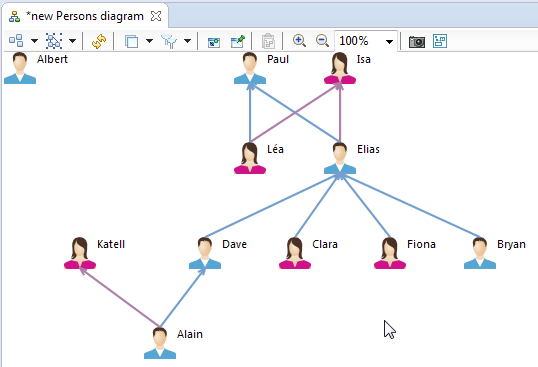
- Save this diagram (Ctrl+S) in order to store it into the repository.
Note: this second step can be performed from any other machine connected to the machine running the server. Just indicate the right address as Repository Host in the Export Project to Repository dialog.
4) Start a second client
From the Eclipse where you have installed the metamodel (first step of previous section) you can launch a second Eclipse Configuration which will allow us to simulate the access to the shared model by another user.
- Launch a new Eclipse Configuration
- Click on the menu “Run / Run Configuration…“
- Double-click on “Eclipse Application” to create a new Configuration
- Rename the configuration from “New_configuration” to “Client2”
- Click on the button “Run”
- Create a shared modeling project on the model exported previously
- Click on the menu “File / New / Shared Modeling Project”
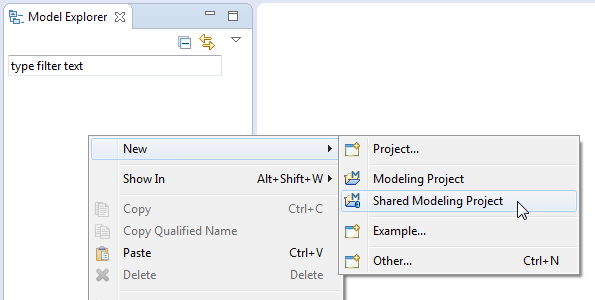
- Click on the button “Test connection”, then click on “Finish” twice
- Edit the shared model
- Open the shared modeling project named “basicfamily.sample.shared”
- In this project, open the model named “example.basicfamily” and double-click on the diagram “new Persons diagram” (under the object named “Family)
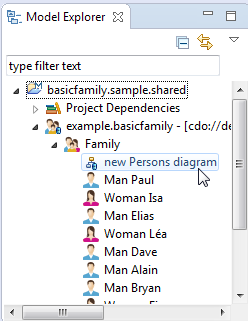
- Modifiy the diagram (by moving the persons icons) and the name of the persons (by using the property view)
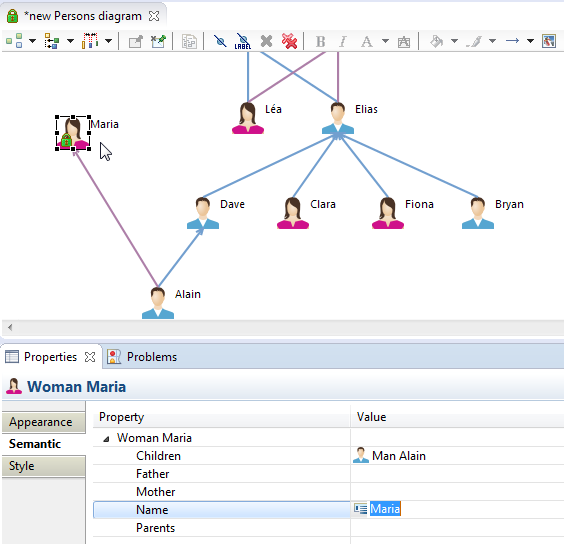
- Note: the sample Basic Family modeler is very basic, it does not provide much edition tools. To better evaluate concurrent edition with Obeo Designer Team, you should replace this modeler by the solution of the Sirius Advanced Tutorial.
- Save the diagram and go back to the first client to see that the modifications have been immediately reflected
The video below shows how two different users can simultaneously work on the same model